Creator guide
Overview
FitCutter lets you mark up your YouTube workout videos: where the rest periods are, which exercise each segment contains, and what equipment it needs.
Viewers with the extension then adapt the video to themselves. They skip movements they cannot do, change rest lengths, and filter by the equipment they own. Tag a video once and it works for every viewer, whatever their fitness level, injuries or home-gym setup.
Prerequisites
- Google Chrome browser (desktop)
- A YouTube channel where you publish workout content
- A Google account linked to that channel
1 Install the Extension
Install FitCutter from the Chrome Web Store. Once it is added, the extension appears as a small icon in your browser toolbar.
2 Create Your Account
Navigate to the Creator Dashboard and sign in with your Google account. On your first login, you'll be asked to connect your YouTube channel:
- Google Sign-In Authenticate with the Google account that owns or manages your YouTube channel.
- YouTube Authorisation Grant FitCutter read-only access to your channel information. This is used solely to verify that you own the channel associated with the videos you tag.
3 Generate a Passkey
The Creator Dashboard shows your passkey. It links the extension to your channel — and it is the only credential the extension needs, which is what lets you hand the tagging work to someone else.
- Click Copy to put it on your clipboard.
- Give it to an editor or an assistant and they tag on your channel from their own machine — no Google sign-in, no dashboard access, nothing to share but the key.
- Regenerate it at any time from the dashboard. The old passkey stops working immediately. Tags already published are unaffected.
- Treat it as a key, not a password: whoever holds it publishes as your channel until you regenerate it.
4 Connect the Extension
Click the extension icon in your toolbar and open Settings. Turn on Content creator mode. A Channel passkey field appears below it — paste your passkey there. There is no Save button; it is stored as you type.
Reload your YouTube page. The Start segment, End segment and Publish buttons now appear on the player.
If someone is tagging on your behalf, they follow this same step on their own machine with the passkey you sent them. The extension checks the passkey, not the Google account signed into their Chrome — so there is nothing else for them to log into.
5 Brand Your Channel
Open Branding in the Creator Dashboard. What you set here belongs to your channel, not to any one video: save it once and it appears across your whole catalogue — the videos you have segmented, the ones you have not, and everything you published years before you found FitCutter.
What you set
- Name and description — what viewers see. Leave the name blank and your channel name is used.
- Accent colour — a six-digit hex value. It colours the badge, the sidebar card and the rest-length controls viewers use. The rest controls are the only place it shows without an offer.
- Logo — a URL for your mark. If it fails to load, your initials are shown instead.
- Text on your accent colour — what button labels are written in. Leave it empty and it is chosen for you: white, or dark text on a very pale accent.
6 Promote Your Paid Content
What you set
- Your offer — a heading, a supporting line, the button’s words, and where it goes.
- Up to 10 further links — each needs a title and a URL. A one-line description and a button prompt, such as “New”, are optional. Links can point anywhere: a newsletter, your Instagram, a waitlist.
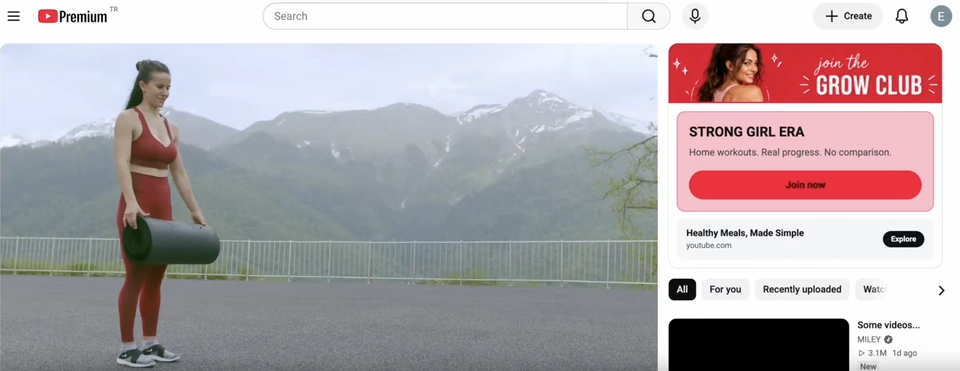
- Three switches — show over the player, show in the sidebar, show in the extension menu. Each works independently.
Over the player
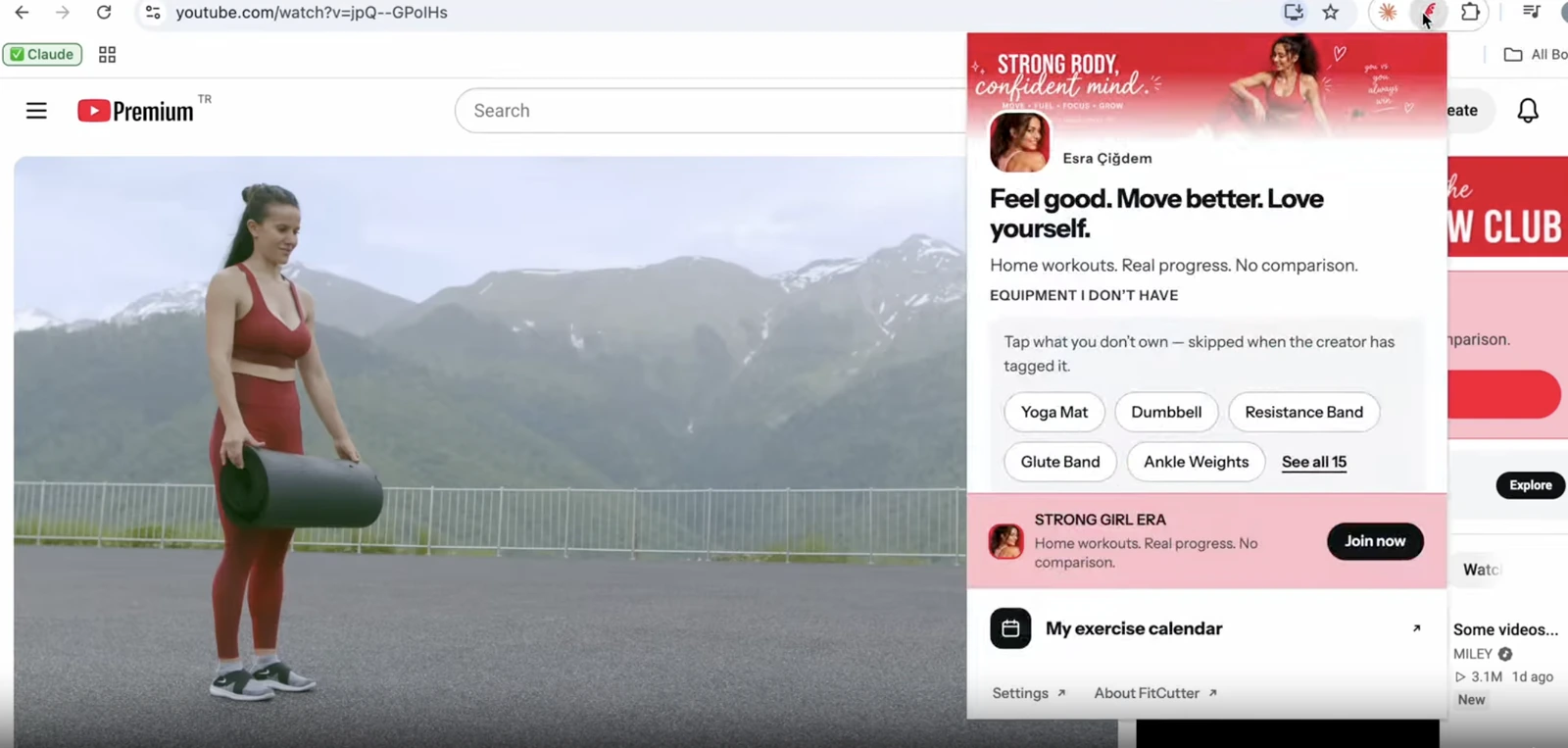
A badge on the video with your name, description and offer button. Viewers can dismiss it. It then collapses to a small mark in the player controls, one click from the full offer.
In the sidebar
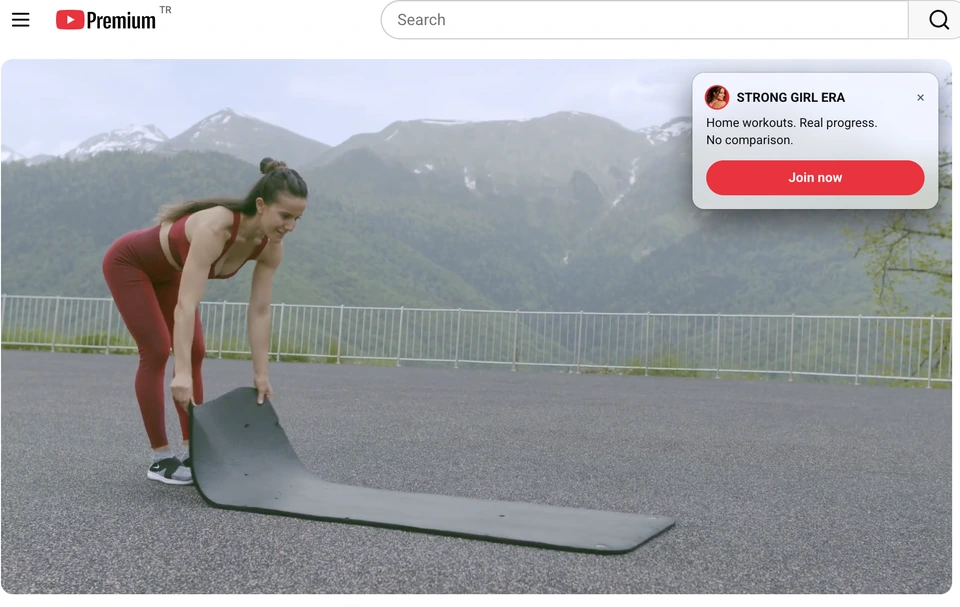
A card beside the video with your offer and your further links. Each link shows the site it leads to. The card stays visible for the whole video.
Rules worth knowing
- Your branding and offer belong to your channel, so they appear on every video you publish — including the ones you have not tagged. Only a video you have hidden shows nothing.
- Every link needs both a label and a URL to appear. URLs must start with http:// or https://.
- Keeping your links working is your responsibility. FitCutter checks that a URL is well formed. It does not open the URL or check that the page still exists.
- Changes reach viewers as soon as you save. There is nothing to republish.
Before you segment anything
Segmenting is not the gate on your branding. Open one of your own videos that you have never touched, and a viewer with the extension sees your badge over the player, your card in the sidebar, your offer button and your links — the same as on a fully segmented video. Only the parts that need segments are missing:
- No segment bar. There is nothing to draw under the player yet.
- The skip controls fold away. In the extension popup they collapse into one row, See your preferences. Nothing is lost — those choices are the viewer’s own and follow them to every video — and your branding, your offer and the calendar lead the popup instead.
- No “not tagged” message on your videos. That notice is only for channels with no FitCutter account at all. Your audience is never told you left something undone.
7 Mark Up Your Videos
Navigate to any of your own YouTube videos. Your branding and offer are already showing on it from step 5 — what you are adding here is the segment bar and the skip controls.
Rest Zones
Mark where each rest period starts and ends. Viewers set their own rest length within it.
Movement Types
Label each exercise segment: squats, push-ups, planks. Viewers skip the movements they want to avoid.
Equipment Tags
Name the equipment each segment needs: dumbbells, resistance bands. Viewers skip what they do not own.
Use the player-bar buttons to set the start time and end time of each segment, choose its type, then click Publish. Published tags reach every viewer with the extension immediately.
How Verification Works
FitCutter checks channel ownership at three points, so a tag can only ever land on the channel its passkey belongs to:
- Account registration On first sign-in you authorise FitCutter to read your channel ID and name. Read-only, once.
- Passkey generation The dashboard generates a passkey cryptographically linked to your account and channel.
- Video-level check When a video is tagged, the extension sends the passkey to FitCutter’s server. The server checks that the passkey belongs to the channel that owns the video, and rejects the request if it does not.
The check is on the channel, not on the person at the keyboard. That is deliberate: it is what lets you delegate segmenting to an editor without handing over your login, and it is why regenerating the passkey is how you take that access back.
Frequently Asked Questions
Do my viewers need an account?
No. Viewers only need the free FitCutter Chrome extension. No sign-up, no account, no payment required on their end.
Can someone else tag my videos?
Only someone you have given the passkey to. Every tagging request is checked against the passkey and the channel that owns the video, so no stranger can reach your channel — but the passkey is a key, and anyone holding it publishes as your channel. Share it on purpose, and regenerate it to take the access back.
Can my editor or my team segment videos for me?
Yes — and it is how most creators get a back catalogue done. Send them the passkey; they install the free extension, paste it into Content creator mode and tag from their own machine. They never sign in to your Google account and never open your dashboard, and the segments publish under your channel exactly as if you had made them yourself. When the work is finished, regenerate the passkey: their access ends immediately and everything they published stays live.
What happens if I regenerate my passkey?
The old passkey stops working immediately. Paste the new one into the extension. Tags you have already published are unaffected.
Do I need to authorise YouTube every time I log in?
No. YouTube authorisation is only required during your first registration. After that, a regular Google sign-in is all you need.
I saved my branding, so why don’t viewers see it?
Check three things: you have set up an offer, the video is one you have tagged, and your plan is active. A missing offer is the usual cause — a name, colour and logo on their own display nothing.
Does my branding show on videos I haven’t tagged?
Yes. Branding is set up once for your channel and appears on everything you publish, tagged or not — so it reaches viewers from the day you save it, across a back catalogue you may never get round to segmenting. What a tagged video adds is the segment bar and the skip controls. To take branding off a particular video, hide that video; to take it off everywhere, turn both placements off under Where it appears.
Do I have to segment a video before my offer shows on it?
No. Your offer is part of your channel branding, so it reaches viewers on every video you have published the moment you save it — segmented or not. Segmenting is what earns the skip controls, not what earns the offer. In practice that means the promotion side of FitCutter is working for your whole catalogue on day one, while you segment at your own pace.
What does a viewer see on a video I haven’t segmented yet?
Your branding, in full: the badge over the player, the sidebar card, your offer and your links. Below that the segment bar is simply absent, and in the extension popup the skip settings collapse into a single See your preferences row rather than a set of empty controls. Your viewers are not shown any “this video is not tagged” message — that one is reserved for channels with no FitCutter account.
A viewer says the extension “could not reach FitCutter”. What is that?
A network problem on their side or an outage on ours — not something about your video. The extension now tells the two apart, so a failed lookup says so plainly instead of reporting your video as untagged. Their saved skips and rest length are untouched, and reopening the popup a moment later usually resolves it.
Is the extension available in other languages?
English and German. Each person sets their own under Language in the extension’s Settings, so a German-speaking viewer gets a German interface without you doing anything. It changes the interface only — your video, your tags and your offer stay exactly as you wrote them.
Can I cancel my subscription?
Yes, at any time. However, upon cancellation your tags will be paused. You can restore them instantly by returning to the app and upgrading to a paid plan.
Support
Stuck on something? We're here to help.